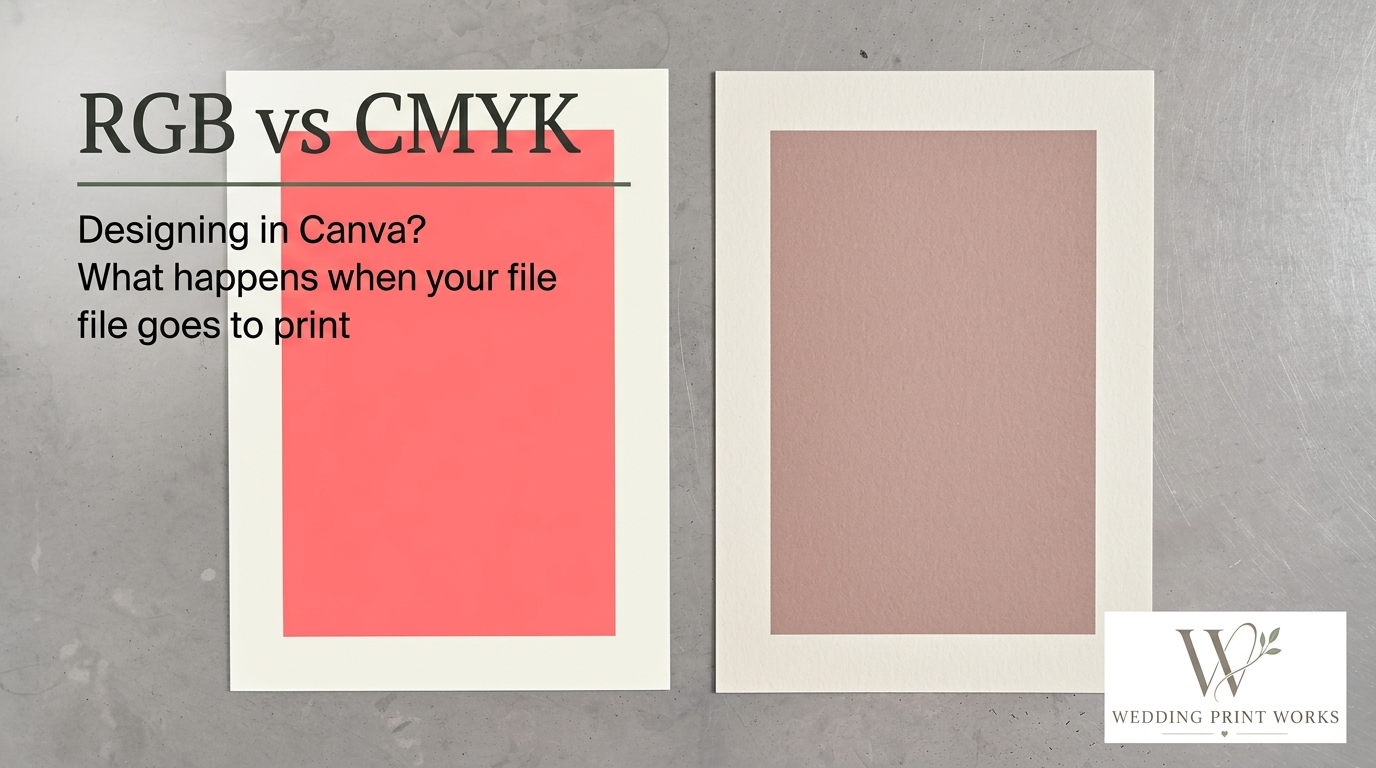
A wedding invitation can look beautifully vivid on a Canva screen and print with softer, less saturated colours. That difference is often down to the way screens and print reproduce colour, but the file, paper and production process also matter. A few checks before you supply artwork can help you avoid surprises and make reprints more consistent.
RGB and CMYK: what changes in print?
RGB combines red, green and blue light to create colours on screens. CMYK uses cyan, magenta, yellow and black inks to reproduce colour on paper. Because a screen emits light while printed ink reflects it, the two systems cannot reproduce every colour in the same way.
Some bright RGB colours, particularly vivid greens, blues and neons, sit outside the range that standard CMYK printing can reproduce. Converting them to a print colour space may make them appear less intense. The result also depends on the paper, ink and printing conditions, so changing a file to CMYK does not by itself guarantee a precise match to the screen.
Preparing Canva artwork for print
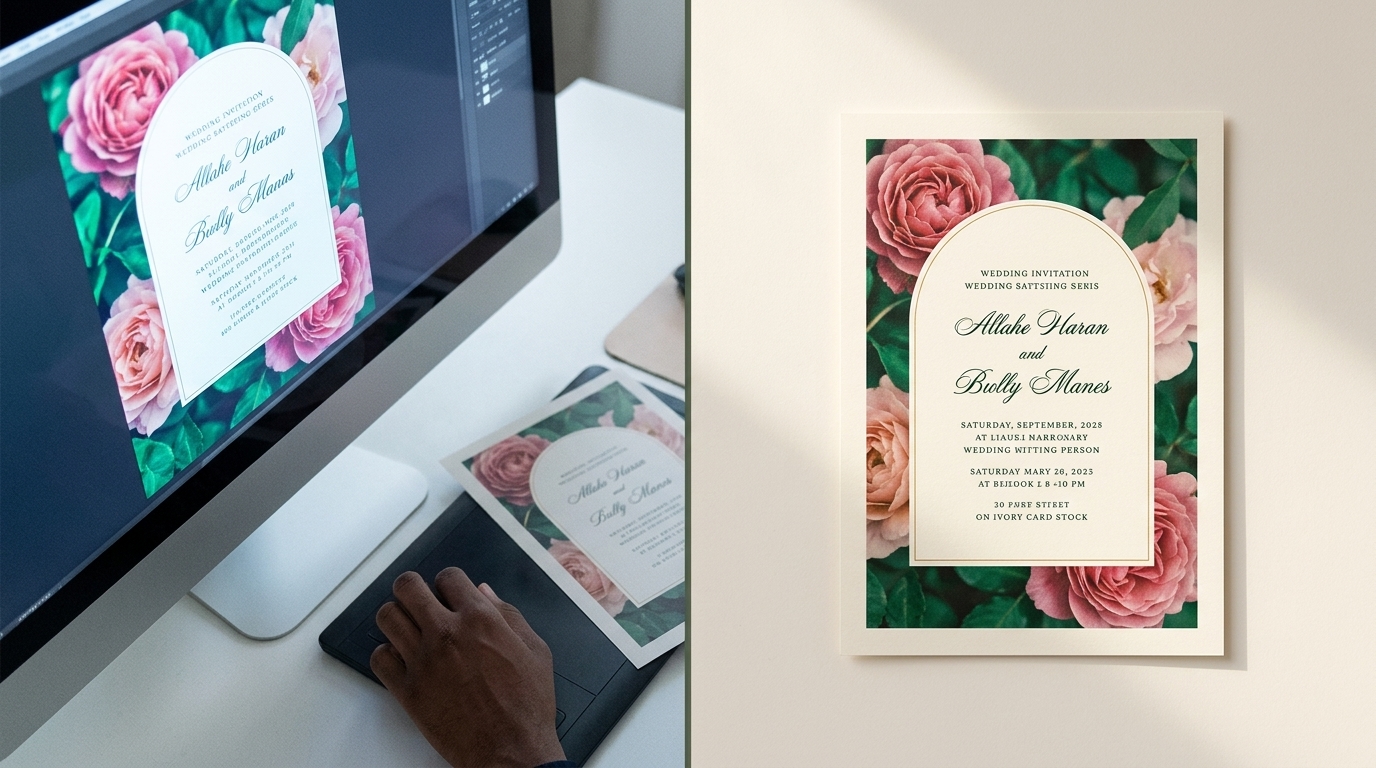
Before exporting, check the finished size, margins and any printer-specific file requirements. These details matter just as much as colour mode when you are preparing invitations, information cards or other coordinated stationery.
Check the colour export options
Canva’s available export settings can vary. When you download a PDF for print, check whether a CMYK colour profile is offered and follow the profile or file specification requested by your printer.
If Canva does not offer the required setting, ask your print partner how they want the file supplied. Converting a PDF in other software can change colours and should not be treated as a guaranteed correction. If you do convert the file, inspect the result before sending it to production.
Export a print-ready PDF
PDF Print is generally the appropriate Canva export for printed stationery. Whether to include crop marks and bleed depends on the printer’s requirements, so check before selecting those options. Crop marks are not needed for every workflow, and a file with the wrong marks or page setup can cause confusion.
Allow for bleed and keep important details clear of the trim
Bleed is artwork that extends beyond the finished cut edge. It helps prevent an unprinted white sliver if the sheet shifts slightly during trimming. The amount required is set by the printer; 3 mm is common, but it is not a universal specification.
Keep text, names, dates and other essential details comfortably inside the trim area. For shaped stationery, such as an arch or scalloped edge, confirm the finished dimensions and cutting requirements with your printer before laying out the design.
How to improve colour consistency
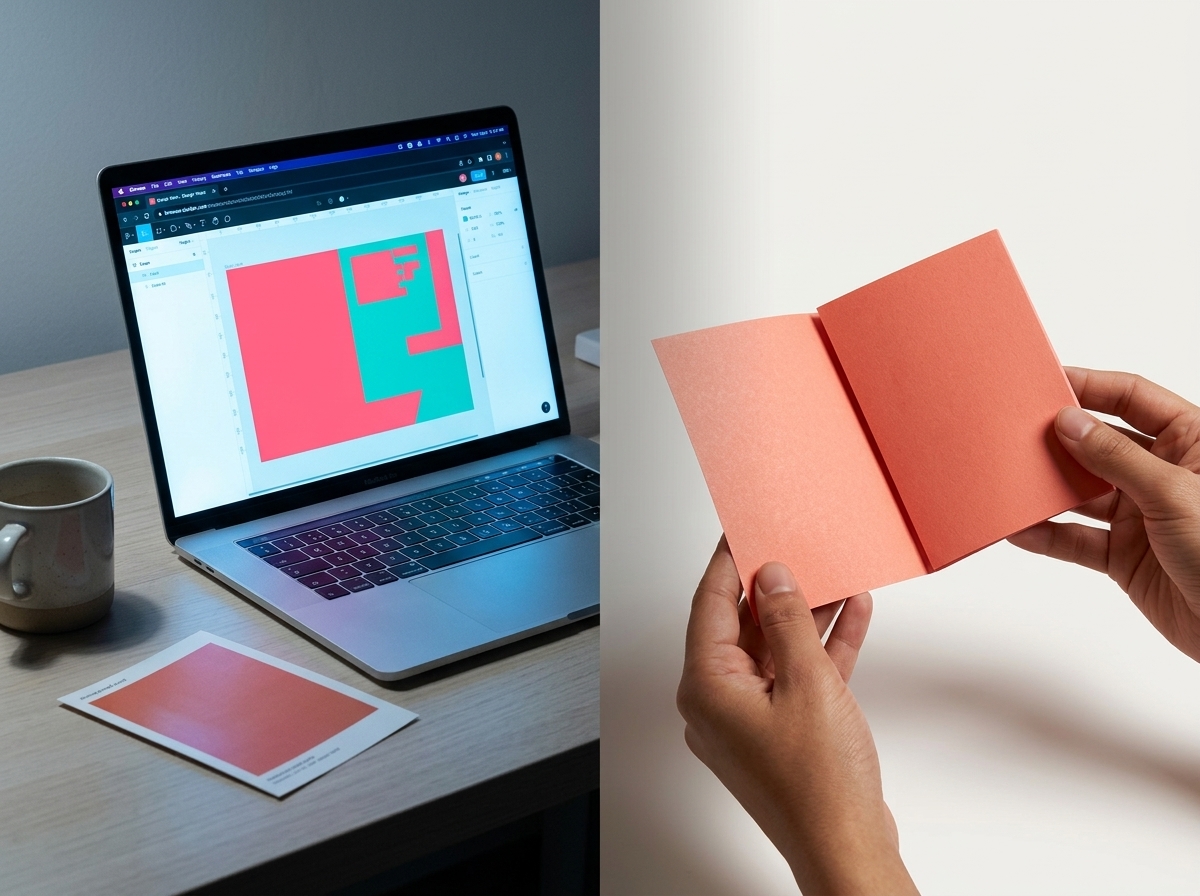
A monitor preview is not a reliable proof of the final printed colour: screens vary in brightness and calibration, and the paper affects how ink appears. For colours that are central to a client’s design or brand, discuss the options with your printer before committing to a full run.
- Use a printed proof or sample where appropriate. It gives you a more useful reference than a screen preview, although the final production result can still vary slightly.
- Keep a record of approved artwork and specifications. This makes repeat orders easier to manage and compare.
- Check the supplied PDF at actual size. Look for unexpected colour changes, missing elements, low-resolution images and text too close to the trim.
- Tell your printer about colour-critical details. A reference image or description can help explain what matters, but it is not a substitute for an agreed print specification.
Working with a trade printer
A trade printer can advise on file preparation, colour settings and the practical requirements for producing your stationery. Ask what format and colour profile they accept, how they want bleed set up, and whether a proof is available for your job. This is especially useful when developing a new design or ordering a large quantity.
Wedding Print Works is being developed as a production partner for wedding stationery designers and businesses. Trade wedding stationery printing can let you keep your own brand and client relationships while outsourcing physical production, leaving more time for design, marketing and customer service.
Frequently asked questions
What is the difference between RGB and CMYK?
RGB creates colours with light for screens. CMYK uses four printing inks to reproduce colours on paper. The two systems have different colour ranges, so some screen colours cannot be matched exactly in print.
How do I export a Canva design for printing?
Download the artwork as a PDF Print and follow your printer’s instructions for colour profile, bleed and crop marks. Canva’s export options can vary, so check what is available in your account and confirm the required settings with your printer.
Why do printed colours look different from my Canva design?
A screen emits light, while printed ink reflects light from the paper. Screen settings, the printable colour range, paper choice and print conditions can all affect the result. A proof or sample can help you assess colour before a larger order.